
Install 19c step by step on Linux
This post the steps to Install Oracle Database 19c 64-bit 19c on Oracle Linux running on Red Hat 9 (64-bit).
We’ll assume that SSOO 9 has already been installed; you can follow this link instructions on how to do that.
https://bdconraul.com/instalacion-red-hat/
1. Download the software
Depending on the support available, you can download the Oracle Database 19c software 19c OTN, edelivery, or MOS.
E-Delivery:
https://edelivery.oracle.com/osdc/faces/Home.jspx
OTN:
https://www.oracle.com/es/database/technologies/oracle19c-linux-downloads.html
MOS
https://support.oracle.com/signin
In our case, we opted for the OTN option.
We download the file that matches our architecture, in our case Linux bits:
p37260974_190000_Linux-x86-64.zip
As we'll see later, if you try to Install Oracle 19.3 directly on Linux 9, you may encounter a bug; to avoid this, you need to apply a patch during installation.
For this reason, we also need to download the latest version of OPatch, which you can find at link following link:
1) Download OPatch the following Oracle URL:
https://updates.oracle.com/download/6880880.html
2) BUG FIX:
There is a crucial and unique patch to resolve errors that occur during the installation of Oracle 19c Enterprise Manager (OEM) on Linux 9 (OL9) or RHEL9. Therefore, it will be necessary to apply the following patch (Patch 35775632):
Patch 35775632: PLACEHOLDER FOR STUBS.TAR PATCH FOR OL9 THAT FIXES BUG 33794281
You can download the patch at the following address:
https://support.oracle.com/
p35775632_190000_Linux-x86-64.zip
2. Preparing the environment.
You can change the host name using operating system commands with hostnamectl (recommended), or you can manually edit the "/etc/hosts" and "/etc/hostname".
To change the hostname, run the following (as root).
hostnamectl set-hostname new-host
3. We install the software prerequisites.
For Install the prerequisites for installing an Oracle 19c database, it is highly recommended to Install the19c package.
This Linux package automatically installs all necessary software requirements (packages and dependencies), modifies and configures operating system parameters, and creates the users and groups needed to Install Oracle Database 19c Oracle Grid Infrastructure without issues.
Otherwise, you will have to manually change or configure all the parameters required for the installation; therefore, installing this package greatly simplifies the installation of software .
During the software installation, we specified a hostname and a static IP address.
Our configuration is as follows.
Hostname: oracle19cdb1
Server's static IP address: 192.168.1.137
Once you have RHEL9, download the RPM follows (with internet access).
curl -o19c.0-1.el9.x86_64.rpm rpm
We install the recently downloaded package.
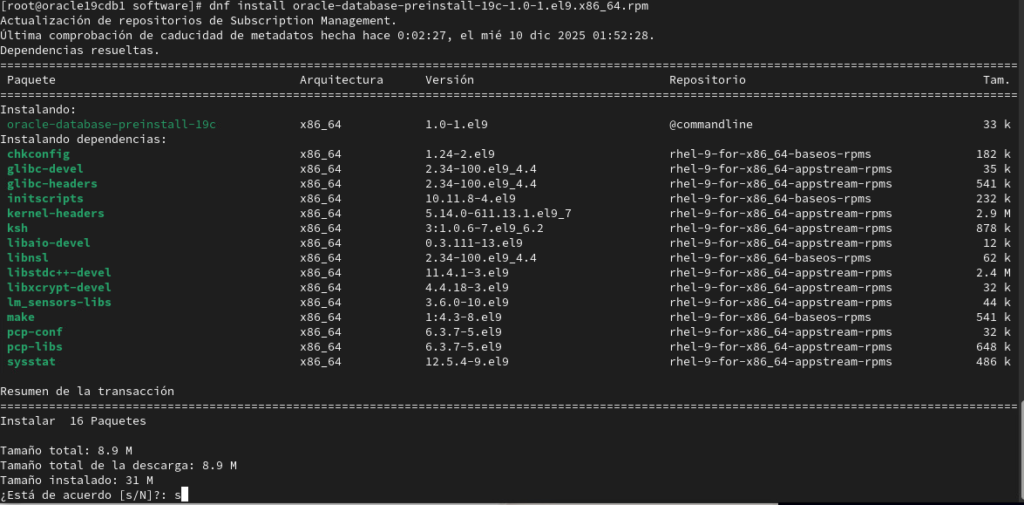
Before running the installer, keep in mind that the Oracle 19.3 installer does not work properly on Linux 9. If you run the installer immediately after downloading the software very likely to encounter this bug.
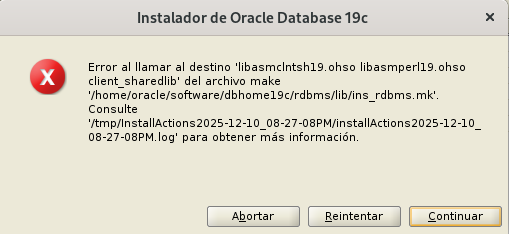
This is the error you will get if you try Install 19.3.
3- Preparing the environment before launching the installer.
First, before applying the patch, we update the Opatch file Opatch unzip p6880880_230000_LINUX.zip) as follows.
We navigate to the $ORACLE_HOME directory of our installation, move the Opatch directory Opatch another directory with a different name, and unzip the file p6880880_230000_LINUX.zip.
cd $ORACLE_HOME
pwd
software
[oracle@oracle19cdb1 dbhome19c]$ mv OPatch OPatch
oracle@oracle19cdb1 dbhome19c]$ unzip p6880880_230000_LINUX.zip
Archive:  p6880880_230000_LINUX.zip
  creating: OPatch
  creating: OPatch
  creating: OPatch
 inflating: OPatch.oracle.glcm.common-logging_1.6.5.0.jar
  inflating: OPatch.jar
  inflating:opatch.sh
Apply patch 35775632.
To download the patch: Get Patch 35775632 (p35775632_190000_Linux-x86-64.zip) from My Oracle Support (MOS).

1 - Extract the previously downloaded patch.
unzip p35775632_190000_Linux-x86-64.zip


2 - After extracting the .zip file, a file named "stubs.tar" will appear.
Locate this file and copy it to your $ORACLE_HOME/lib/stubsdirectory.

cpsoftware.tar $ORACLE_HOME/lib/stubs


3 - Extract the .tar file you copied.
cd $ORACLE_HOME/lib/stubs
tar -xf stubs.tar
4. Installing the 19c software .
Before beginning the installation, we will create the directories where the installation will take place. We will also create an environment variables file so that we do not have to manually execute these variables each time we want to access our database.
mkdir -p /u01/app/oracle/product/19.0.0/dbhome_1
We decompress the LINUX.X64_193000_db_home.zip file.
pwd
software
[oracle@oracle19cdb1 dbhome19c]$ unzip LINUX.X64_193000_db_home.zip
Example of a file containing environment variables ( test.env ) (adjust the variables to match the environment in which the script is being run)
cat test.env

export TMP=/tmp
export TMPDIR=$TMP

export ORACLE_HOSTNAME=oracle19cdb1
export ORACLE_BASE=/u01/app/oracle
export ORACLE_HOME=/u01/app/oracle/product/19.0.0/dbhome_1
export ORA_INVENTORY=/u01/app/oraInventory
exporttest
export PDB
export DATA_DIR=/oradata

export PATH=/usr/sbin:/usr/local/bin:$PATH
export PATH=$ORACLE_HOME/bin:$PATH

export LD_LIBRARY_PATH=$ORACLE_HOME/lib:/lib:/usr/lib
export CLASSPATH=$ORACLE_HOME/jlib:$ORACLE_HOME/rdbms/jlib
Once the patch has been applied, you can launch the installer.
We run the installer with ./runInstaller
oracle@oracle19cdb1 ~]$ . .test.env
export CV_ASSUME_DISTID=OEL7.8

pwd
software
oracle@oracle19cdb1 dbhome19c]$ ./runInstaller
To prevent the following error from appearing.
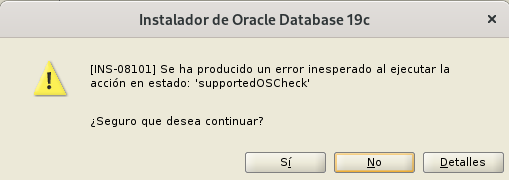
[INS-08101] Unexpected error while executing the action at state: 'supportedOSCheck'
Add the following environment variable (CV_ASSUME_DISTID=OEL7.8) before running the installer.
export CV_ASSUME_DISTID=OEL7.8

oracle@oracle19cdb1 dbhome19c]$ ./runInstaller
Running the installer.
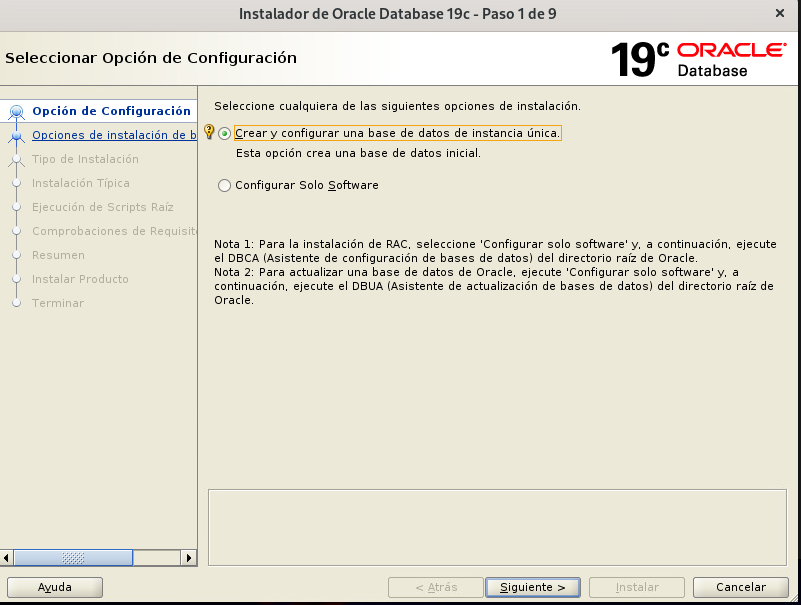
Two options appear: Install software create a database, or simply Install software only.
Let’s choose the first option to create a test database.
Two options appear.
The Desktop option is a simpler installation for development databases with minimal configuration for testing, learning, etc. With fewer resources, it’s more suitable for PCs, laptops, etc. The second option (Server class) is ideal for production environments and servers, where greater scalability and performance are required; therefore, it uses more resources.
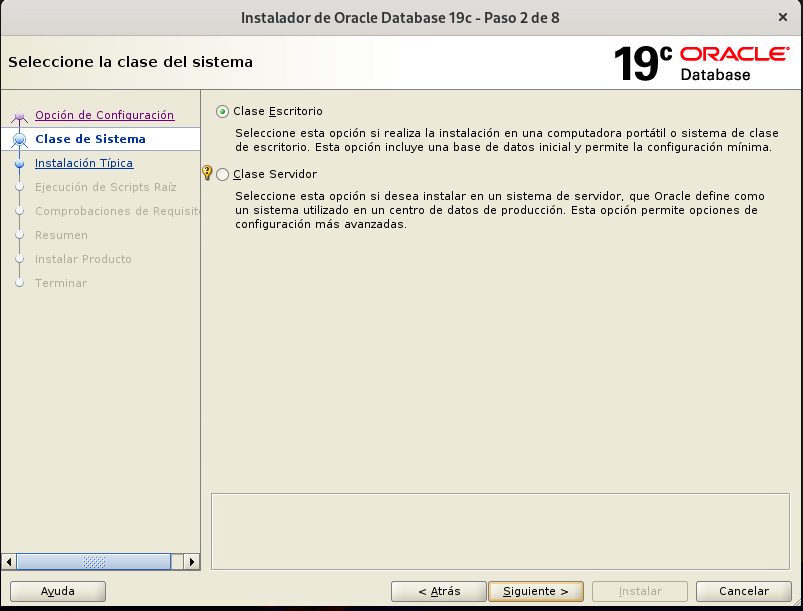
You can choose the option that best suits your needs. In our case, we will choose the second option, as it will be necessary for subsequent posts.
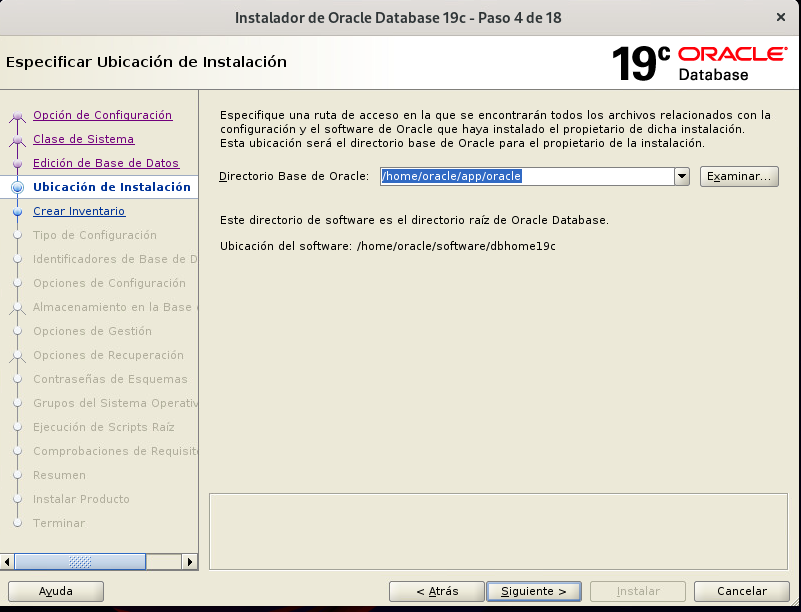
On this screen, we will choose the directory where the database software will be installed.
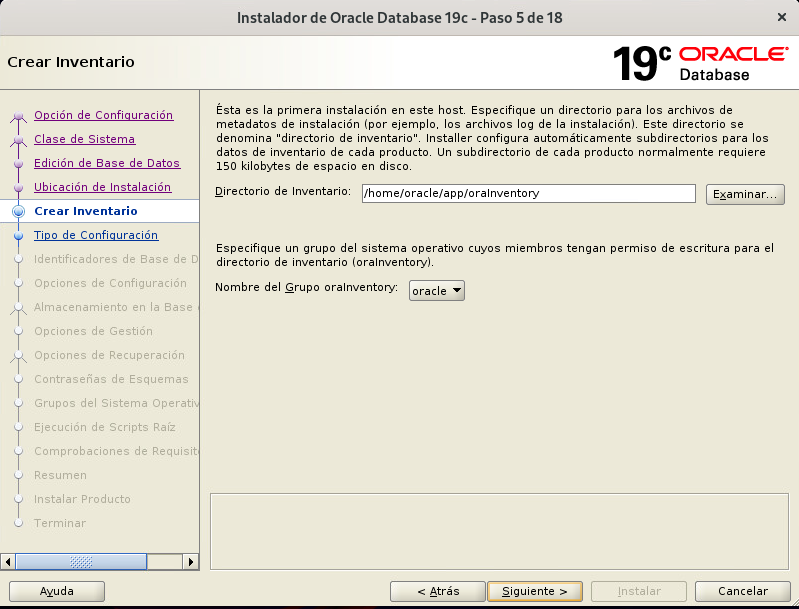
On this screen, we'll specify where our software inventory will be located.
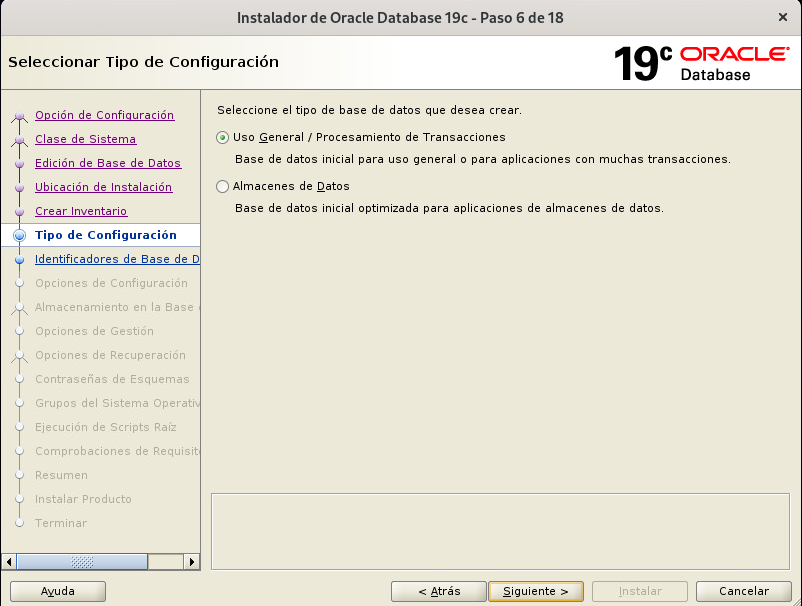
We choose the type of database we are going to create.
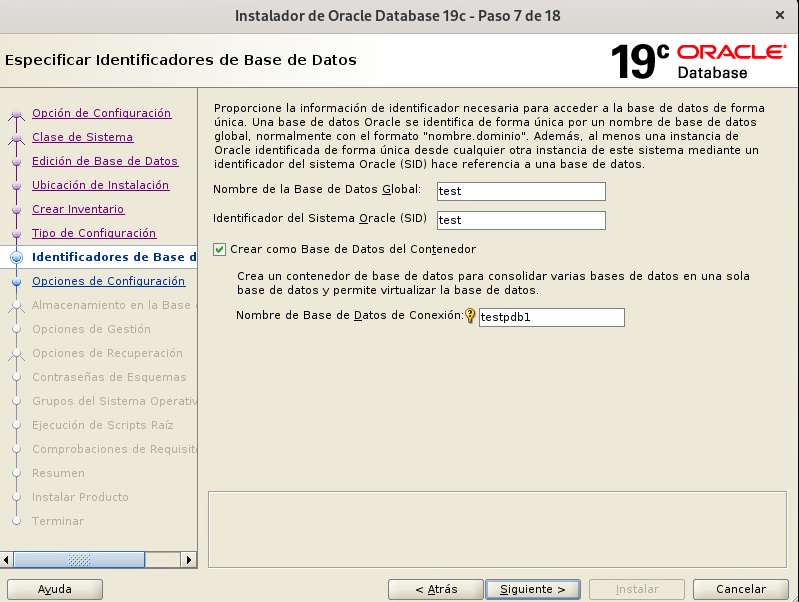
We specify the details of our database, which we will call " test." This database will be created as a multitenant architecture, so we will select the "Create as a container database" option and create a new container—in our case, "testpdb1."
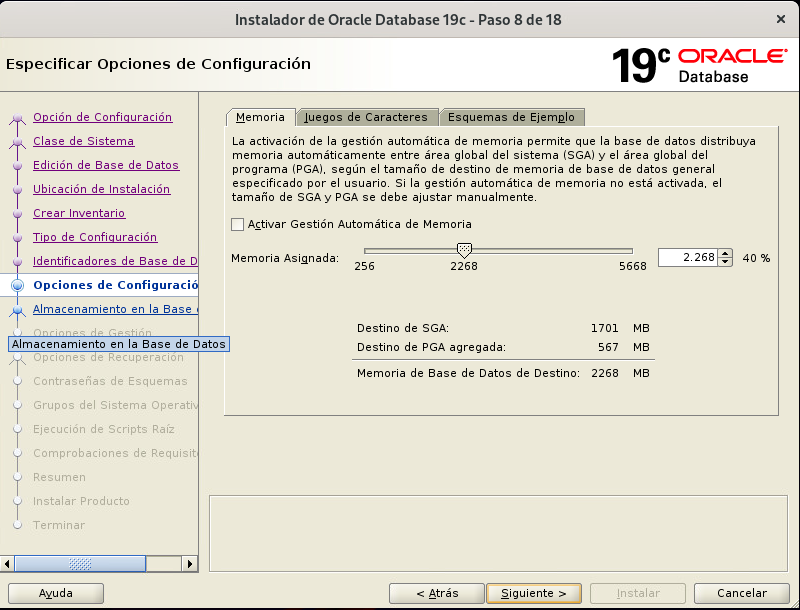
We specify the characteristics that our database will have.
Memory, character set, etc.
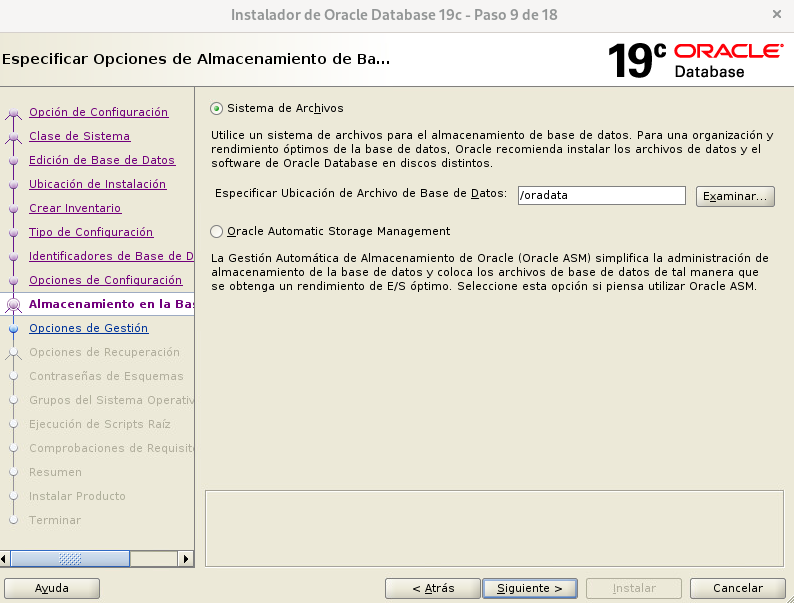
We choose where our database files will be stored. These are the physical files where our database will be stored.
In our case, they will be stored on a file system separate from the space where the software will be installed (recommended).
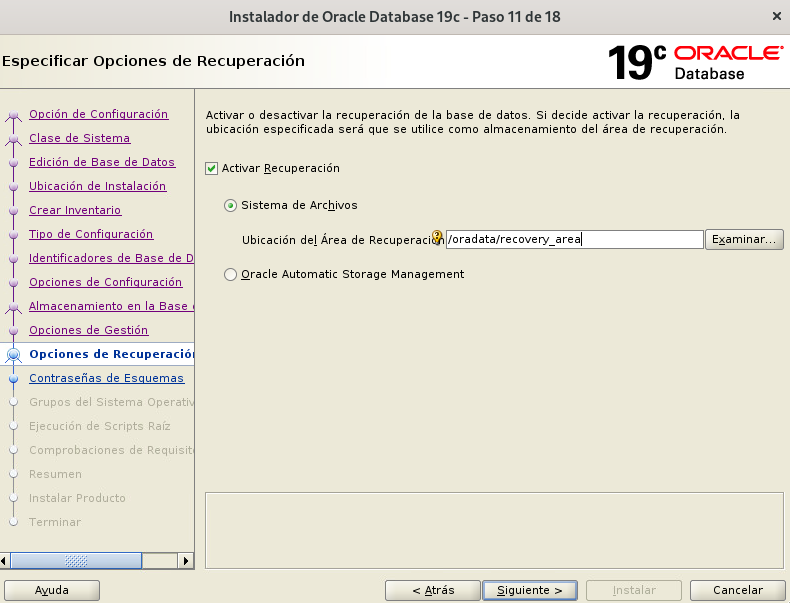
Enable or disable flash_recovery_area. Enable/disable this option, which allows you to automatically centralize and thus simplify and speed up backup and disaster recovery tasks.
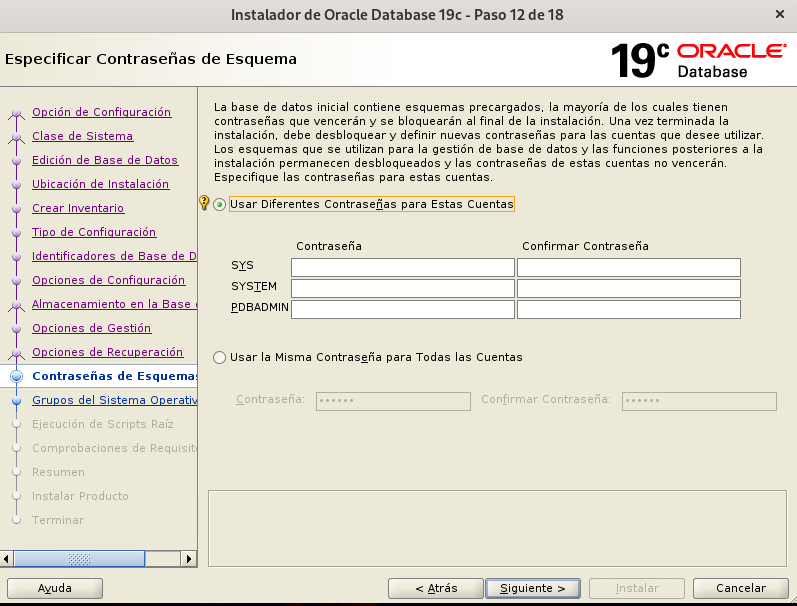
We start with the passwords for administrator users.
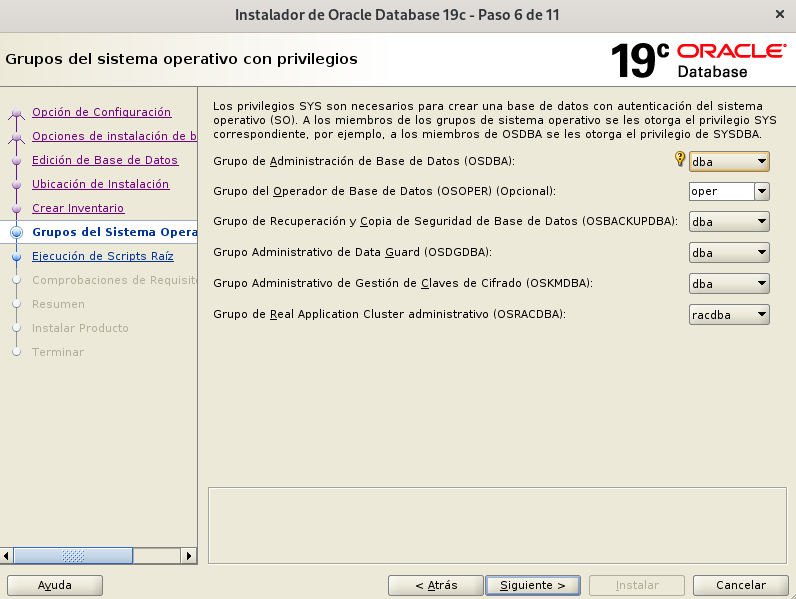
Specify operating system users and groups according to your system requirements (dba, oper, oinstall, etc.).
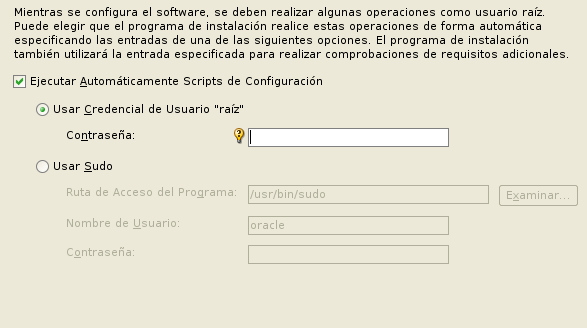
Script execution with root credentials.
For the installation to be successful, the installer must perform certain actions on our system with root user privileges. You can instruct the installer to run it automatically (credentials required) or run it manually once the installation is complete.
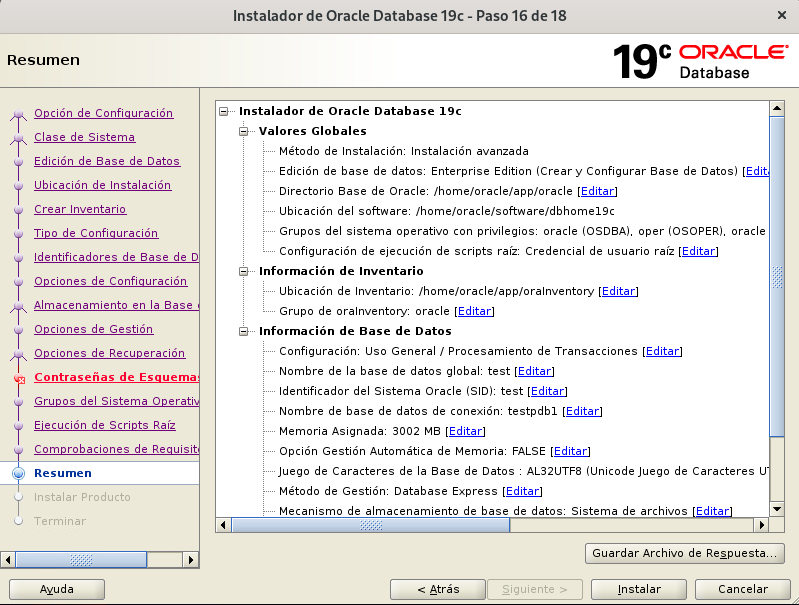
A summary of our installation will appear. We will check that everything is correct and begin the installation.
Finally, a message will appear indicating that the installation has been completed successfully.

5. Connect to the database.
Here's how to connect directly to your pdb created pdb using SQL*Plus:
sqlplus username/password@host:port/PDB_name
oracle@oracle19cdb1 ~]$ sqlplus system/oracleconraul@oracle19cdb1:1521/testpdb1
SQL*Plus: Release 19.0.0.0.0 - Production on Tue Dec 16 01:48:56 2025
Version 19.3.0.0.0

Copyright (c) 1982, 2019, Oracle.  All rights reserved.


Connected to:
Oracle Database 19c Edition Release 19.0.0.0.0 - Production
Version 19.3.0.0.0
The usual practice is not to connect directly to the database, but to create a tnsnames.ora file and connect to a development environment, most commonly SQL Developer.
Example tnsnames.ora file

[oracle@oracle19cdb1 ~]$ . oraenv
ORACLE_SID = [test] ? test
The Oracle base remains unchanged with the valuesoftware
[oracle@oracle19cdb1 ~]$ cd $TNS_ADMIN
[oracle@oracle19cdb1 admin]$ cat tnsnames.ora
testpdb1 =
 (DESCRIPTION =
   (ADDRESS = (PROTOCOL = TCP)(HOST = oracle19cdb1)(PORT = 1521))
   (CONNECT_DATA =
     (SERVER = DEDICATED)
     (SERVICE_NAME = testpdb1)
   )
 )
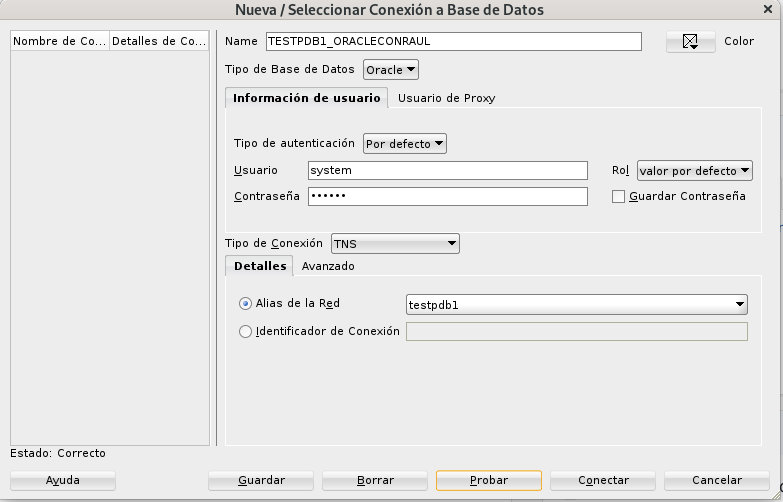
We choose a connection name, TNS connection type, and search for the alias name in our tnsnames.ora. We provide the username/password, and we are now ready to connect.